Documentation
Use your phone as a webcam
Laptop webcams are mediocre; the camera in your pocket is excellent. Phone Camera bridges the two: connect an Android phone over USB, press Start, and it appears as a normal webcam called "Margine Phone Cam" everywhere: browser video calls, OBS, GNOME Snapshot. No account, no cloud service, and nothing to install on the phone: it uses Android's own USB debugging. The app is preinstalled; look for Phone Camera in the app grid.
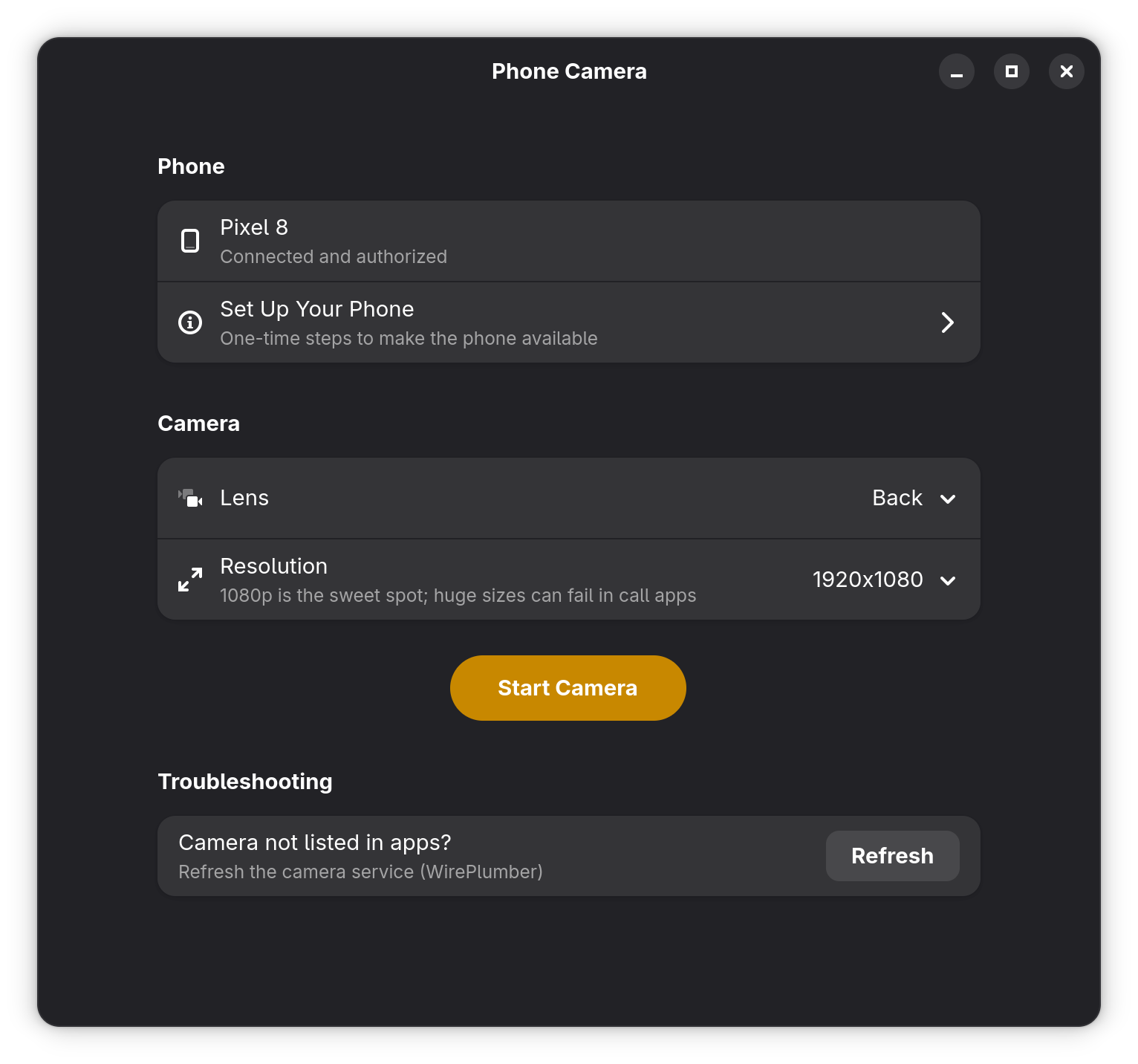
Prepare the phone (once)
The app has this same guide built in, under Set Up Your Phone. On the phone:
- Enable Developer options: Settings › About phone › tap Build number seven times.
- Turn on USB debugging: Settings › System › Developer options › USB debugging.
- Connect with a data cable. Many charging cables carry power only: if nothing shows up, the cable is the first suspect.
- Authorize the computer: the phone shows Allow USB debugging? Accept it, and tick Always allow from this computer so you never see it again.
Done once per phone. From then on, plugging it in is enough.
Use it
Open Phone Camera. The top row tells you what it sees: no phone, a phone waiting for authorization, or your phone by name.
- Lens: back or front camera. The back camera is almost always the better one.
- Resolution: 1080p by default, and that default is deliberate. A modern phone can stream its full sensor (4080x3072 on a Pixel 8, several gigabits per second, uncompressed) and most video-call apps simply give up on a stream that size. Higher modes are listed if you want them for recording.
- Start Camera: the preview inside the window shows exactly what the other side will see.
While the camera is running, pick Margine Phone Cam as the camera in whatever app you are using. Changing lens or resolution mid-stream is fine: the app restarts the feed on the fly.
Press Stop Camera (or close the window) when you are done. The virtual camera disappears from other apps as soon as the phone stops feeding it, so it never clutters camera menus when unused.
If the camera does not show up in an app
Press Refresh in the Troubleshooting section: it restarts the desktop camera service, which occasionally holds a stale view of the available devices. Then reopen the app that needed the camera (browsers usually also need the page reloaded).
Two more things worth knowing:
- Start the camera before opening the app that will use it. The virtual device is intentionally invisible while nothing is streaming, so an app that scanned earlier will not list it.
- Very large resolutions can be accepted by the app but fail during a call. If a call app shows a black frame, drop back to 1080p.
What it uses under the hood
Phone Camera drives scrcpy (shipped with the image, pinned to an exact release) and the kernel's v4l2loopback virtual camera, which Margine loads at boot as /dev/video21. Everything runs as your user: the app needs no administrator rights, and nothing is installed on the phone.
Wireless use (no cable) is possible with Android's wireless debugging but is not wired into the app yet. If you would use it, say so in the GitHub Discussions.